 Book a demo
How the chat works
Last updated: October 15, 2026
BetterReviews replaces the traditional review form with a short, friendly chat. Instead of staring at a blank textbox, your customer answers a few natural questions, optionally adds a photo, and ends up with a review that reads like something a human actually wrote.
This page walks you through exactly what your customer sees — step by step — and what lands in your dashboard when they’re done. If you’ve never watched a customer go through the flow, start here.
The customer’s experience
1. Arriving
Your customer gets to the chat through one of two doors: the review request email BetterReviews sends after the Shopify event you chose (at most one email per order, even when it ships in several boxes), or a “Write a Review” button on the product page.
Either way, they land on a full-screen entry that asks a single question: “How was your purchase?” with five tappable stars. No signup, no forms up front, no branding that screams “marketing.” The conversation only starts after they tap a star — that pre-tap rating becomes the floor on the published rating, anchoring the bot’s tone (5★ celebrates; 1★ leads with empathy).
If they’re coming from the multi-product hub or picker (when one email covers several products), they tap the rating directly on the product card and land mid-flow without a second tap.
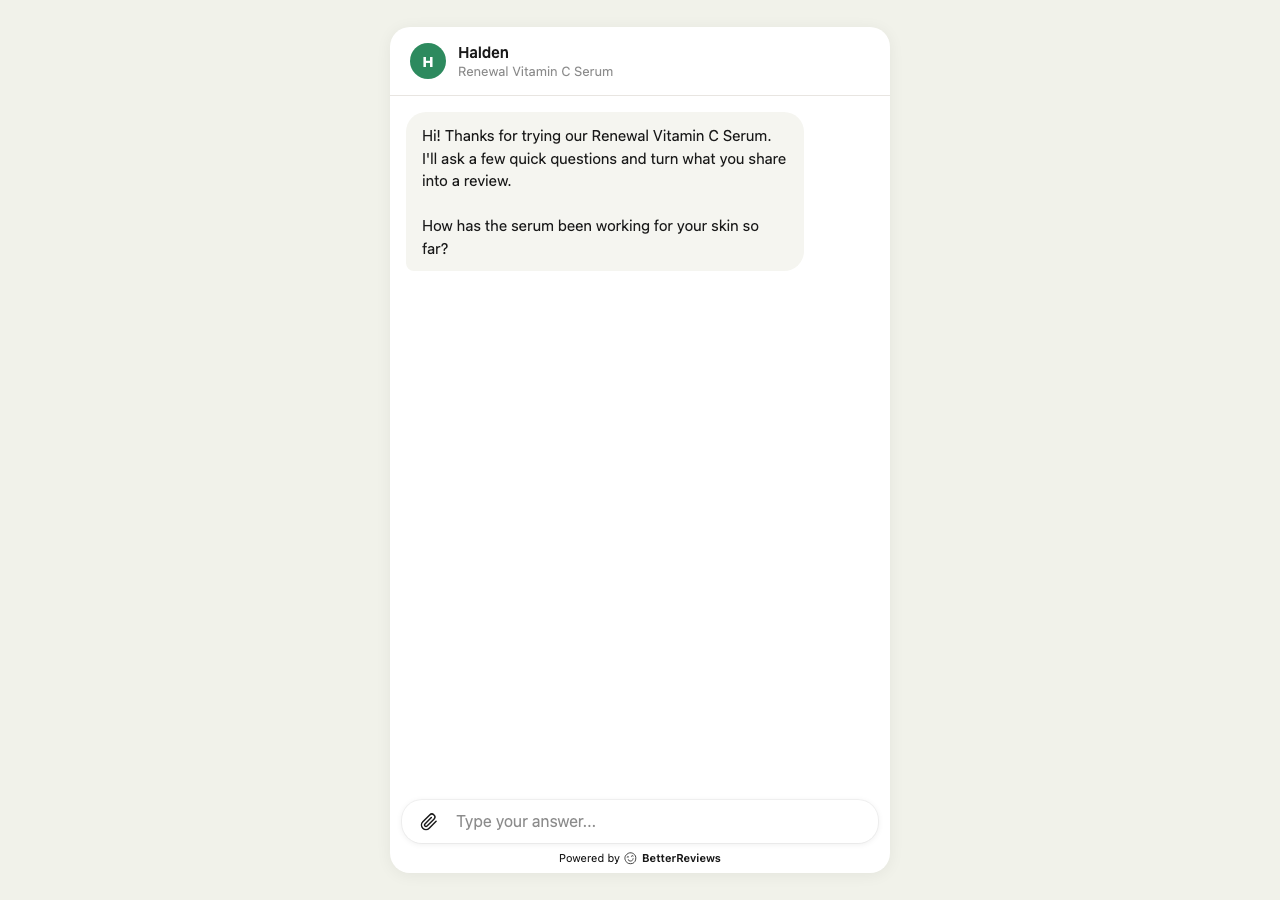
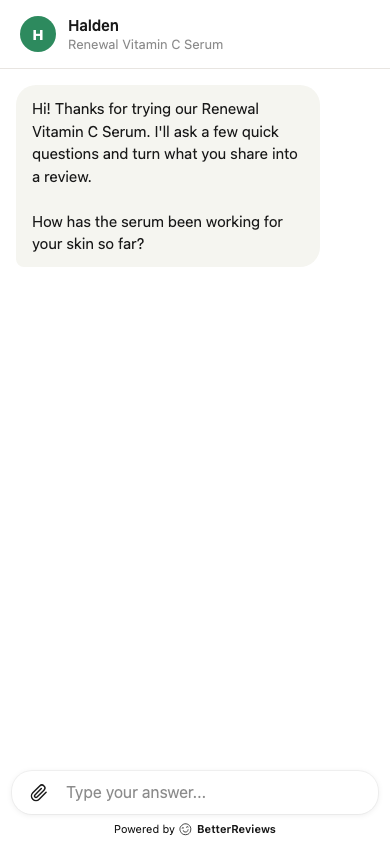
2. The turn loop
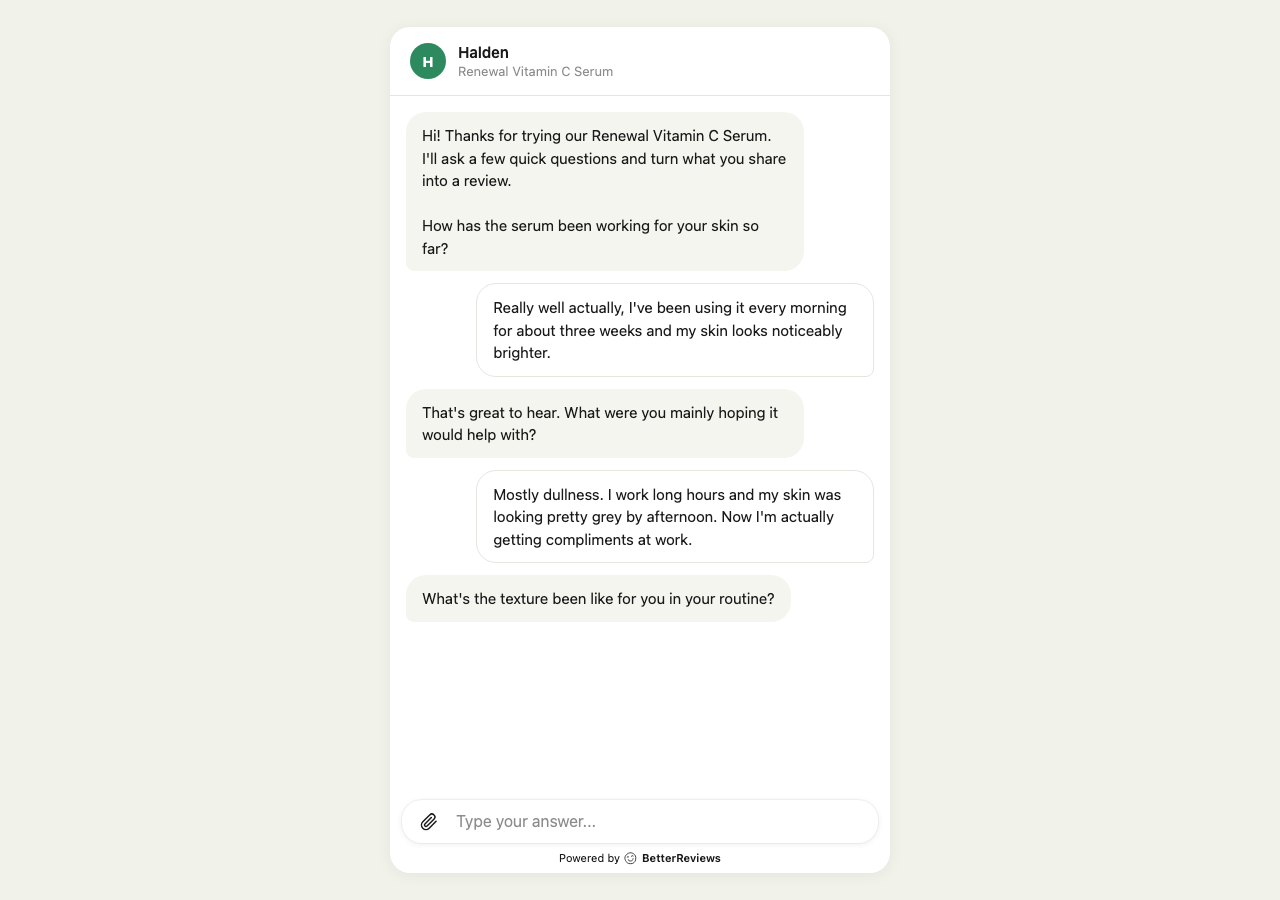
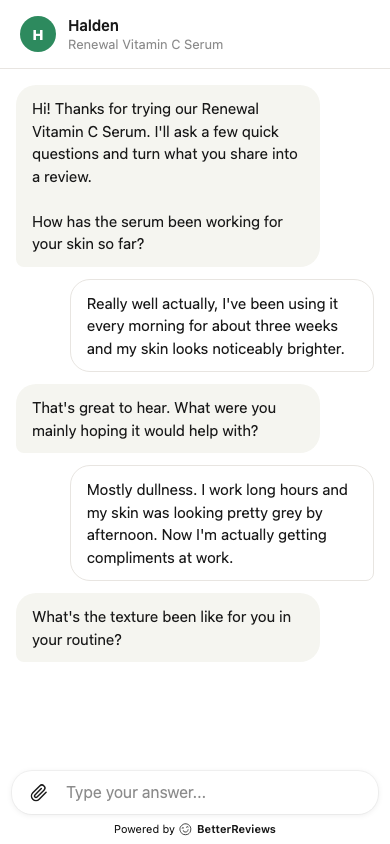
The chat asks a question. Your customer answers. The chat responds to what they said — not a script — and asks something useful as a follow-up. If a customer’s very first message already reads as a full review, the chat recognizes that, confirms warmly, and goes straight to submit — no unnecessary follow-ups. It may still invite an optional photo that matches what they described, but they can submit right away without one.
Under the hood, two AIs are working in parallel on every message: one decides what to say next, another drafts the review as the conversation unfolds. Your customer never sees the draft until the end.
3. Photo moment
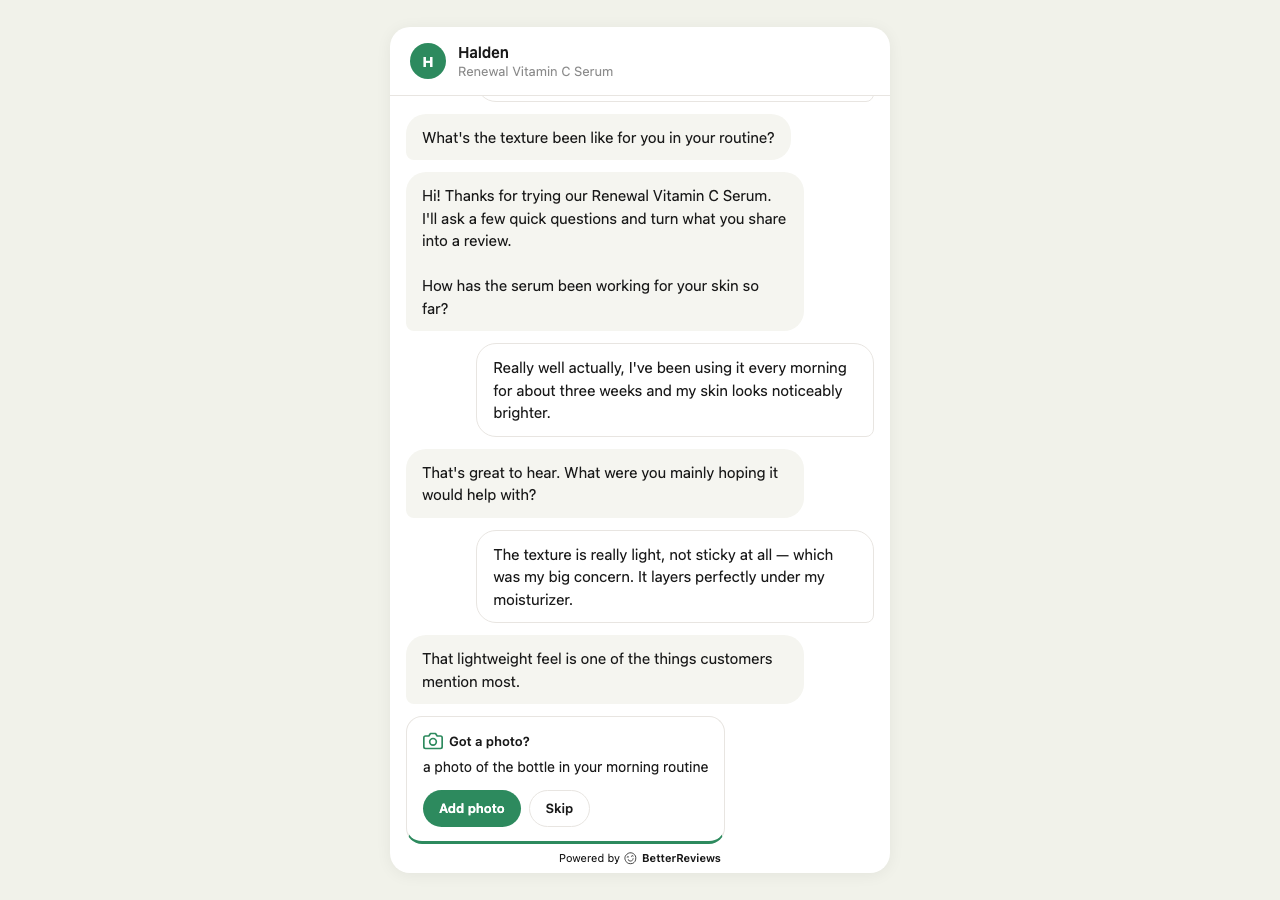
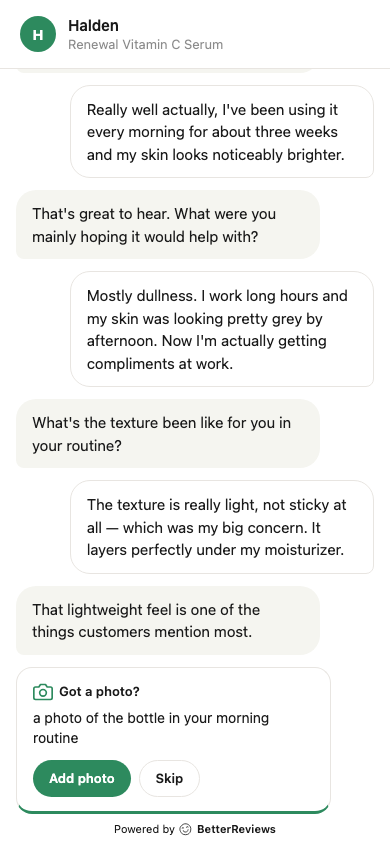
When the conversation feels substantive and the vibe is positive, the chat gently invites a photo. It’s a single tap — paperclip or camera — no separate upload wizard.
Photos go straight to our storage and attach to the review automatically. Photos added in the chat are also checked by a vision model for quality and tagging. Your customer can skip if they don’t want to share one.
Videos up to 100 MB upload the same way through the paperclip and attach to the review; the vision model doesn’t analyse them, so the chat won’t comment on what’s in a video. Recorded video answers — where a customer answers with their camera instead of typing — are in limited testing and aren’t a setting you can turn on yet. Where they’re enabled, the recorded clip is used to write the review text and isn’t shown on your storefront.
4. When a customer needs help
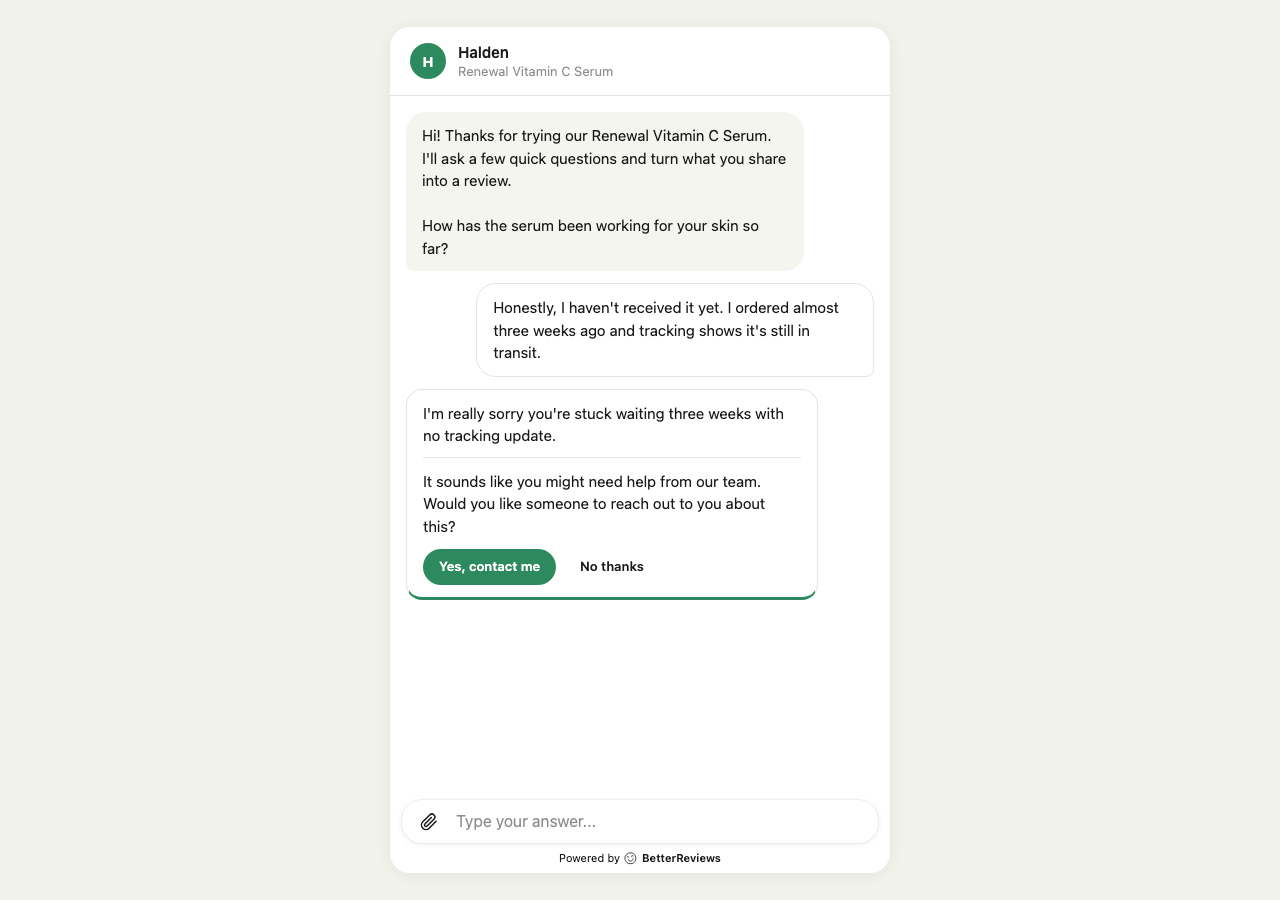
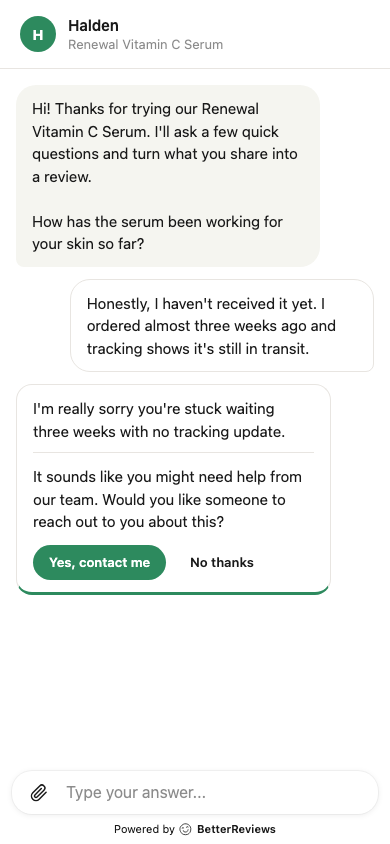
Sometimes a “review” turns into a support issue — the package never arrived, the item broke, they want a return. The chat catches that and flips modes: instead of pushing for a review, it offers to pass the message to your team.
If the customer accepts, we collect their contact info (pre-filled if we already have it from the order), email you the details, and — importantly — ask if they still want to finish the review afterward. No hijacking.
5. Drafting the review
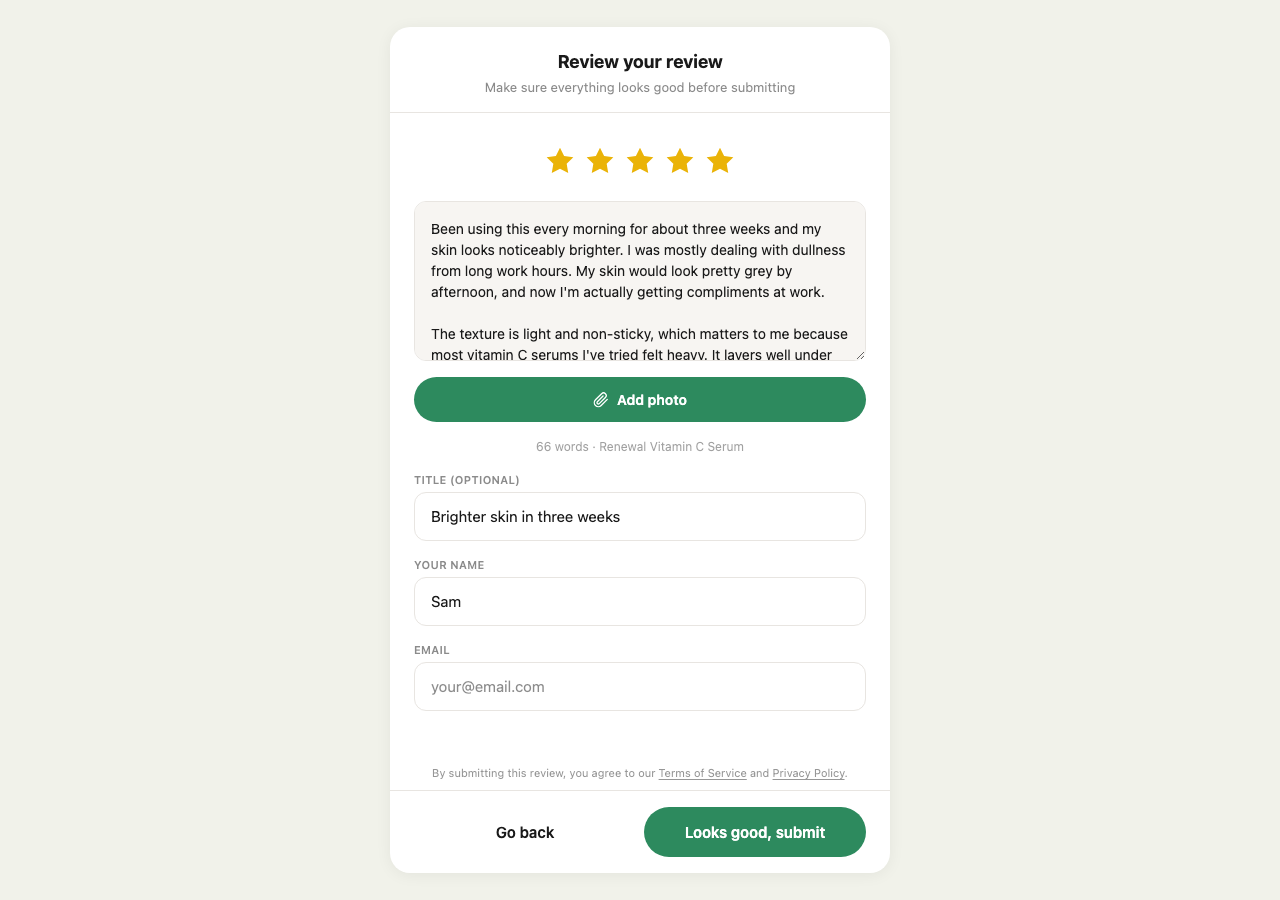
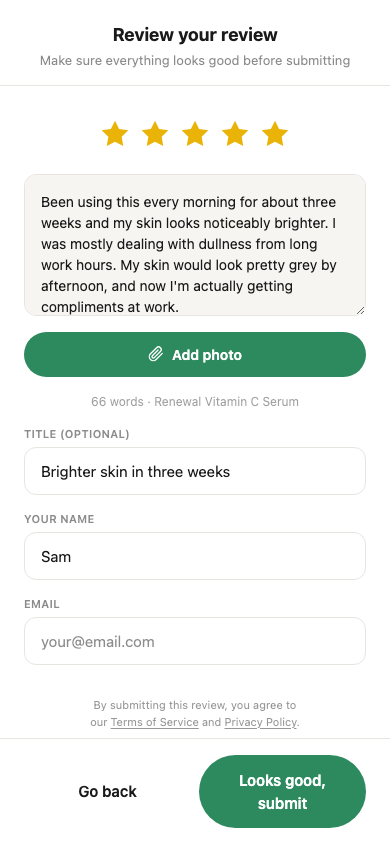
When the chat has enough material, it shows the draft. This is generated from the conversation — your customer’s own words, not AI fluff — and they can edit it freely, tweak the star rating, change the title, or add more photos.
The submit button is deliberately hidden until the chat thinks the review is complete. This prevents “nice!” one-word submissions that tank your review quality.
6. Submit and thank you
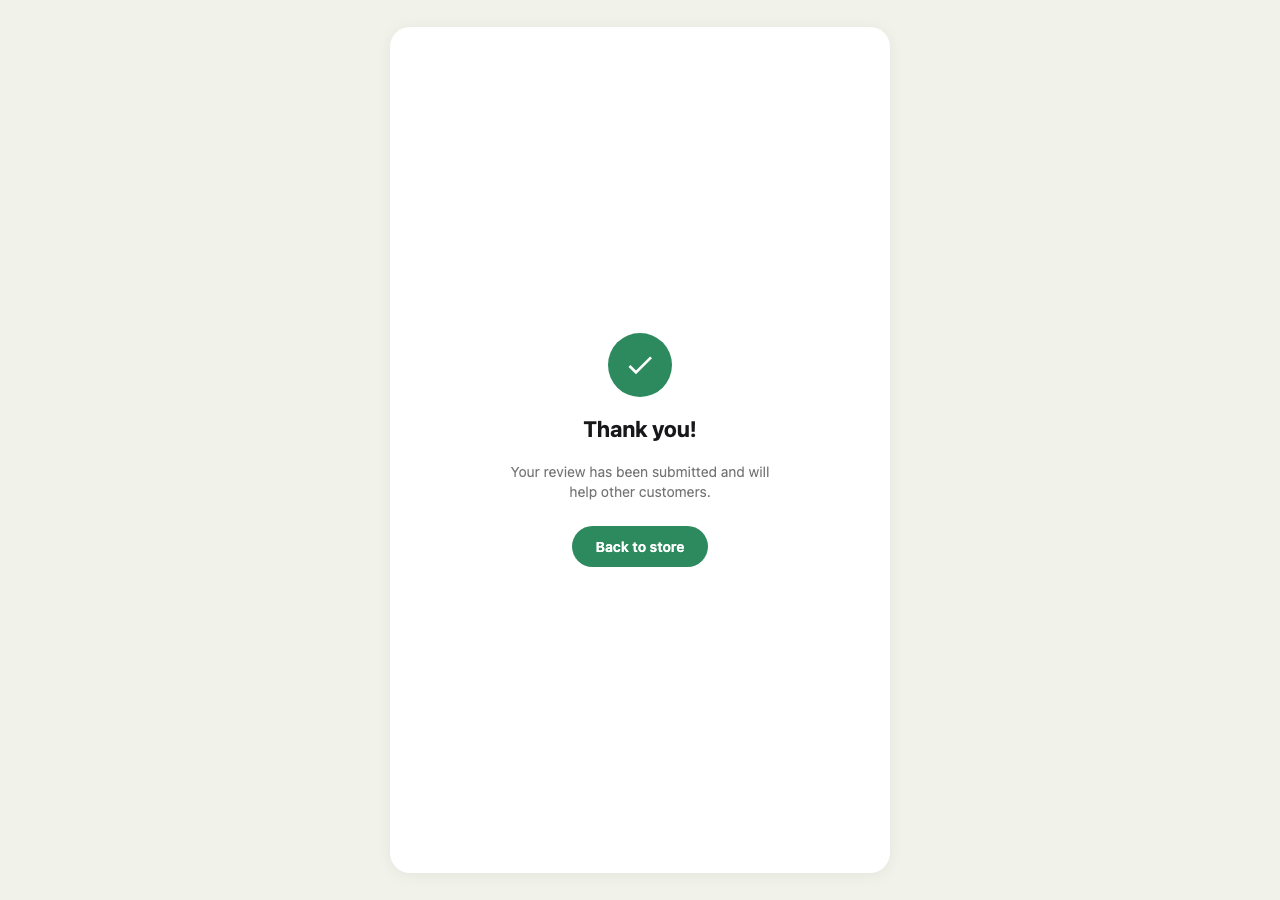
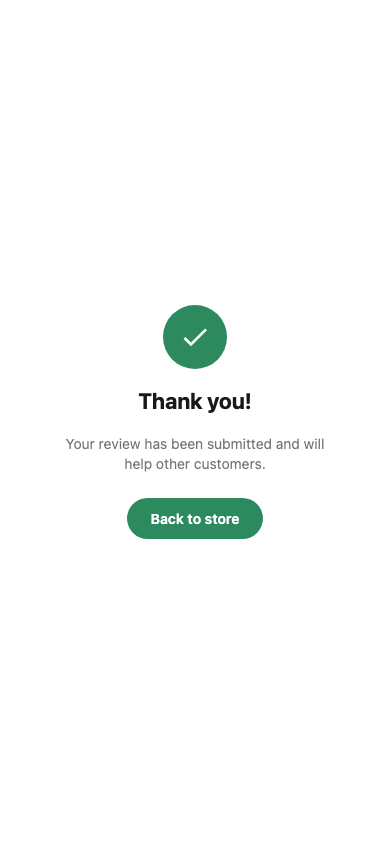
One tap. The review is saved, media is attached, and your customer sees a brief thank-you. If auto-approve is on and the review meets your quality bar, it’s published to the widget immediately. If not, it sits in your moderation queue.
Why it works this way
A few design decisions that surprise merchants the first time they notice them. They’re all intentional.
Why the photo card sometimes doesn’t appear. If the conversation is headed toward a low rating (defects, complaints, disappointment), asking for a photo feels tone-deaf. The chat reads sentiment turn-by-turn and skips the photo prompt for unhappy customers. Happy customers still see it.
Why the support card can come back. If a customer dismisses the first “need help?” offer but a real issue surfaces later in the chat, we’ll re-offer after a few turns. We don’t want to badger, but we also don’t want to miss a genuine problem that your customer only hints at on turn 2 and explains fully on turn 5.
Why abandoned chats are free. On a paid plan, if a customer starts the chat and never submits, it doesn’t count toward your monthly quota. Billing aligns with value delivered — no review, no charge. Conversations older than 24 hours are swept as abandoned. The Free plan’s 50 conversations work differently: one is counted the moment the conversation starts, submitted or not, because on Free the cost to us is the conversation rather than the review. A shopper who opens the chat and walks away has spent one. The only case that costs nothing is a conversation that is never created at all — a failed start, or a second browser tab that is folded back into the first.
What happens after your 50 AI conversations
On the Free plan you get 50 AI conversations in total — one lifetime pool shared between your real shoppers and the conversation editor playground. Start ten in the playground while you tune the opening question, and forty are left for customers.
When the pool runs out, collection does not stop. What changes is one thing: the review link opens the classic review form — star rating, title, text, photo or video upload — instead of the chat. Everything around it is unchanged:
- Review request emails keep going out on the same schedule
- The reviews that come in are moderated, analyzed, and published exactly as before
- Your widgets, syndication feeds, digest, and integrations carry on
A customer mid-conversation when the pool empties is not interrupted — the unit is claimed when their conversation starts, so a conversation that has started always finishes.
There is also a daily limit of 10 shopper chats. On a Free store, shoppers can start at most 10 AI conversations in a day. Once the tenth starts, the rest of that day’s review links open the classic form — exactly the same fallback as above, and just as invisible to your customer. The next day up to ten more can start, until the lifetime 50 run out. The daily limit exists so one bad day (a bot, a burst of scripted traffic) cannot empty a lifetime allowance in an afternoon. Playground conversations you start yourself are not counted against the daily 10 — they still spend the lifetime 50. Paid plans have no daily limit.
To bring the chat back, subscribe to Better, which includes 1,000 AI-guided reviews every month and tops up automatically if you want it to. There is no separate top-up for the free 50: it is a one-time allowance, not a monthly one.
What you’ll see on your end
When your customer submits, three things happen in your BetterReviews admin:
A new review lands in the Reviews tab. Auto-moderation is off by default — every new review waits for your decision in the Pending tab, with the rating, text, photos, and submit date surfaced on the review detail page. Set an auto-moderation preset in Collect if you want reviews that score above your chosen threshold to publish automatically.
Before you run the cutover from the dashboard, no review-request emails go out. Cutover — or the Start collecting step in onboarding — is what turns the system on for real. Both ask for a notification email first if we don’t already have one for your store. Neither asks you to subscribe: collection runs on the Free plan, with unlimited review requests and your first 50 AI conversations. You can also try the chat yourself in the conversation editor playground — those conversations come out of the same 50.
Your dashboard shows what’s new. The page you land on is Overview, with stat cards for total reviews, average rating, and pending count. For a review-by-review view, open the Discovery surface at /discovery. It carries a “Since you last visited” strip across the top counting what was newly imported, analyzed, and tagged ad-ready.
A support request email, if the chat routed one. You’ll get an email with the customer’s contact details, the issue summary, and a copy of the relevant part of the conversation. Reply directly to the customer — the email is set up so your response goes to them, not back to us.
Next up
More pages are coming to cover:
- Photo prompts — when they appear, when they don’t, how to turn them off entirely
- Support routing — what triggers it, what you receive, and how to set escalation rules
- Draft review & submit — how the draft is generated and what customers can edit
- Resuming and abandonment — the 24-hour window and what happens to uploaded media
- Customizing the chat — colors, logo, copy, and the conversation editor
- Billing & limits — how AI review credits are counted and what happens past the included amount
For the bigger picture, see AI-guided reviews.
Questions that this page didn’t answer? Email us at support@betterreviews.app. We read everything.